Using Salt to Deploy and Manage VMware Tools
1. Introduction
Salt is often deployed alongside VMware environments to support automation workflows, day-2 configuration, and integration with platforms such as Aria Automation.
Once the Salt infrastructure and minions are deployed, a common question is:
What should we automate first?
Maintaining VMware Tools across the virtual machine estate is a simple and practical starting point. Tools upgrades are routine operational work and apply consistently across most VMs, making them a good candidate for automation.
This guide walks through a basic implementation using Salt to install and maintain VMware Tools on Windows guests.
We will cover:
- Creating a minimal winrepo_ng package definition
- Installing VMware Tools using Salt package management
- Executing jobs through the RaaS interface
- Building a simple state file for ongoing management
- Handling post-install reboots
The goal is not to build a full software lifecycle pipeline, but to demonstrate a clear and useful Salt use case in a VMware environment.
2. The Use Case: Managing VMware Tools
VMware Tools provides the drivers and integration components required for proper guest operating system operation inside VMware.
In most environments:
- VMware Tools versions drift across VMs
- Some machines are never updated
- Upgrades require manual maintenance windows
Salt can simplify this by treating VMware Tools as a managed software package.
With a basic Salt configuration we can:
- Install VMware Tools if missing
- Upgrade it when new versions are published
- Run upgrades across groups of VMs
- Handle required reboots automatically
The remainder of this guide shows how to implement this using Salt's built-in package management and state system.
3. Preparing Salt for VMware Tools Deployment
Salt manages Windows software through the winrepo_ng package system. Packages are defined as simple YAML files that describe how software should be installed or upgraded.
For this guide we will create a minimal package definition for VMware Tools. The goal is simply to make VMware Tools available through Salt's package manager so it can be installed or upgraded on demand.
More advanced packaging workflows (such as using Git-backed repositories) are covered in other guides, but are not required for this example.
A more complete explanation of Salt software packaging can be found in the related guide:
3.1 Minimal winrepo Structure
winrepo packages are stored on the Salt fileserver.
A simple directory layout for VMware Tools might look like:
/srv/salt/
└── win
    └── repo-ng
        └── vmware-tools
            └── vmware-tools.sls
The vmware-tools.sls file will contain the package definition used by Salt. We will build this file in the next section.
3.2 Enabling the Repository
Ensure the winrepo directory is referenced in the Salt master configuration:
/etc/salt/master.d/winrepo.conf
winrepo_dir_ng: /srv/salt/win/repo-ng
winrepo_source_dir: salt://win/repo-ng
Once the repository location is configured, refresh the package database so the new package definition becomes available.
salt-run winrepo.update_ng
salt '*' pkg.refresh_db
This compiles the winrepo package definitions so they can be used by Salt's package manager.
3.3 Verifying the Repository
Once refreshed, the VMware Tools package should appear as an available package.
Example:
salt 'windows-minion' pkg.list_available vmware-tools
If the package definition is valid, Salt will return the versions defined in the repository.
In the next section we will create the VMware Tools package definition used by winrepo.
4. Creating the VMware Tools winrepo Package
winrepo packages are defined using simple YAML files. These describe how Salt should install, upgrade, or remove software on Windows systems.
In this example we will define a basic package for VMware Tools.
Create the following file:
/srv/salt/win/repo-ng/vmware-tools/vmware-tools.sls
4.1 Example Package Definition
vmware-tools:
  '12.3.5':
    full_name: VMware Tools
    installer: salt://win/repo-ng/vmware-tools/files/VMware-tools-12.3.5-x86_64.exe
    install_flags: '/S /v "/qn REBOOT=ReallySuppress"'
    uninstall_flags: '/S /v "/qn"'
    msiexec: False
    reboot: True
This definition tells Salt how to install VMware Tools using the packaged installer.
The package name (vmware-tools) is arbitrary and defined by the winrepo file. This is the name we
use later with pkg.install commands.
4.2 Directory Structure
The installer should be stored in a sub directory alongside the package definition.
/srv/salt/win/repo-ng/vmware-tools/
├── vmware-tools.sls
└── files
    └── VMware-tools-12.3.5-x86_64.exe
The salt:// URL used in the package definition refers to files served by the Salt fileserver.
4.3 Key Fields
A few fields in the package definition are worth highlighting:
installer
Path to the installer used by Salt. In this example the installer is served from the Salt fileserver:
salt://win/repo-ng/vmware-tools/files/VMware-tools-12.3.5-x86_64.exe
However, the installer does not need to be stored inside the Salt repository. It can also reference an external location such as a web server (Internal or even external).
Examples:
https://software.example.com/vmware/VMware-tools-12.3.5-x86_64.exe
Using an internal HTTP repository is common in larger environments where software binaries are centrally managed.
install_flags
Silent install arguments passed to the installer. VMware Tools supports fully unattended installation.
reboot
Indicates that the package may require a reboot after installation. This does not automatically reboot the system, but informs Salt that a reboot is required if the software is installed or upgraded.
In our VMware Tools example the installer flags suppress the automatic reboot normally triggered by the installer:
REBOOT=ReallySuppress
Because the reboot is suppressed, we set the reboot flag to true. This allows Salt to report that a
reboot is required even though the installer did not perform one.
This becomes useful later when building state files, as Salt can detect that a reboot is pending and handle it in a controlled way.
version block
Each version of the software is defined under its own version key. When new versions are released, additional version blocks can be added to the file.
This also allows targeted version installs if required.
5. Deploying VMware Tools Using the RaaS GUI
With the package definition in place, VMware Tools can now be installed using Salt's standard package management functions.
For administrators using SaltStack Enterprise, the easiest way to do this is through the RaaS job interface.
5.1 Running the Command
In the RaaS interface:
- Navigate to Targets → Windows
- Select the test minion
- Click Actions → Run Command
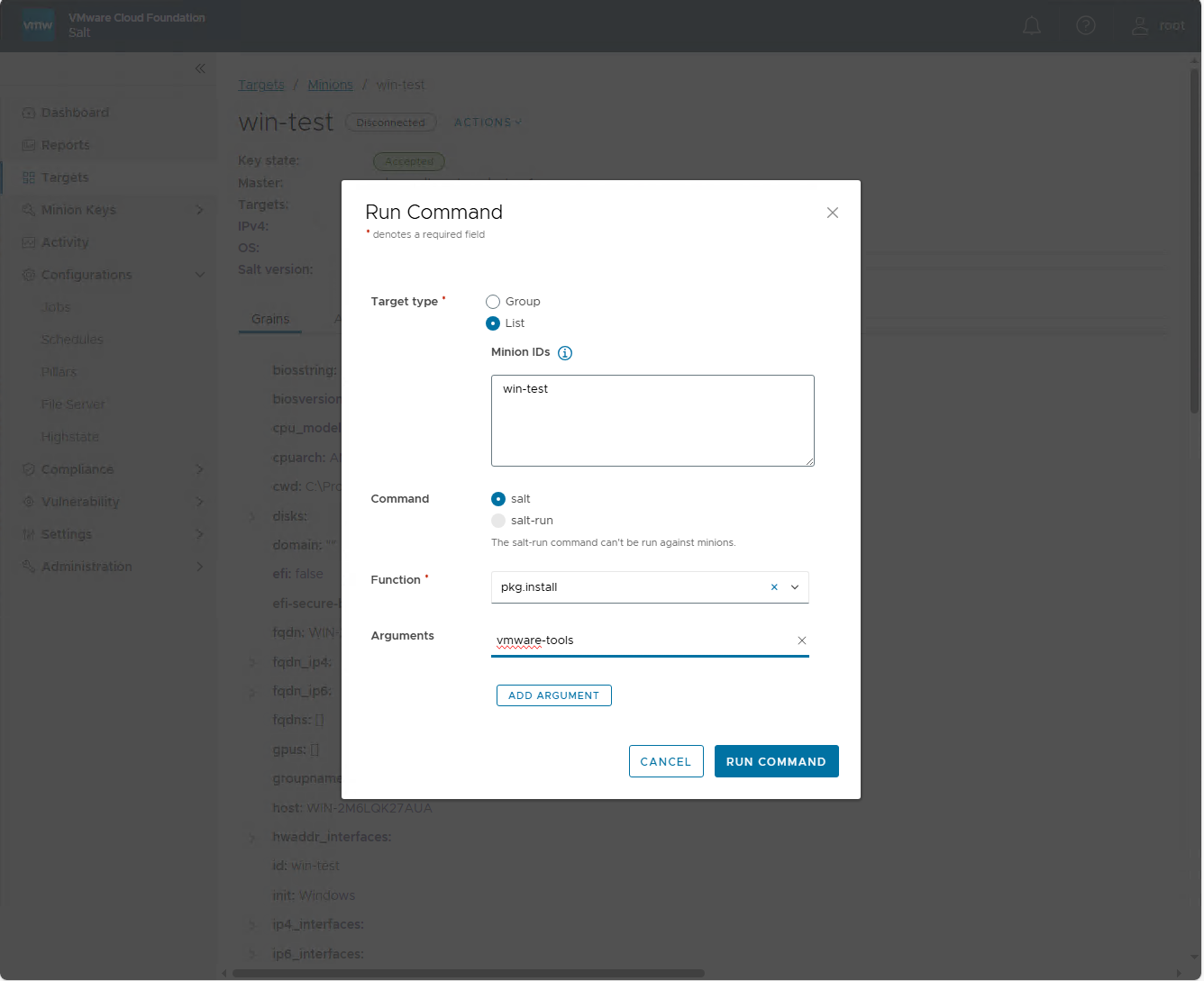
- Set the function to:
pkg.install
- In the Arguments field specify the package name:
vmware-tools
This tells Salt to install the package defined in the winrepo repository.
The completed command should look similar to the example below.
5.2 What Happens Next
When the command is executed, the following occurs:
- The minion checks the compiled winrepo database
- Salt determines the latest available version of
vmware-toolsdefined in winrepo - The installer is downloaded from the configured location
- The installer runs using the defined silent install flags
Because the VMware Tools installer suppresses the automatic reboot:
REBOOT=ReallySuppress
the installation completes without restarting the system.
However, since the package definition includes:
reboot: True
Salt will report that a reboot is required.
5.3 Equivalent CLI Command
The same action can also be performed from the Salt command line on the salt master:
salt 'win-test' pkg.install vmware-tools
5.4 Verifying the Installation
Once the command completes, the installed version can be confirmed with:
salt 'win-test' pkg.version vmware-tools
You can also use the Run Command option in the RaaS GUI to run pkg.version against the minion in
the same way we executed pkg.install earlier. Set the function to pkg.version and add the argument
vmware-tools.
6. Managing VMware Tools with a State
So far we have installed VMware Tools using an ad-hoc command. This works well for testing, but it does not provide an easy way to enforce the desired configuration across multiple systems.
Salt normally manages systems using states, which define how a system should be configured.
Rather than telling Salt to install software every time, we instead define the requirement that VMware Tools must be installed.
Salt then ensures that requirement is met.
6.1 Creating the State
Create a new state file:
/srv/salt/install-vmtools.sls
Example state:
vmware-tools:
  pkg.installed:
    - name: vmware-tools
This state declares that the vmware-tools package should be installed on the target system.
Note that the state file name (install-vmtools) is separate from the package name (vmware-tools).
The package name comes from the winrepo definition we created earlier.
6.2 Why pkg.installed is Different
Earlier we used:
pkg.install
This command tells Salt to install the package immediately, regardless of its current state.
The state version uses:
pkg.installed
This is idempotent, meaning Salt first checks the system and only performs the installation if VMware Tools is not already present or is out of date.
This allows the state to be run repeatedly without causing unnecessary changes.
6.3 Applying the State
The state can be applied using the same Run Command option in the RaaS interface.
Function:
state.apply
Argument:
install-vmtools
Equivalent CLI command:
salt 'win-test' state.apply install-vmtools
6.4 What Happens During Execution
When the state runs:
- Salt checks the currently installed version of VMware Tools
- If the package is missing or outdated, Salt installs the latest version
- If the correct version is already present, no changes are made
This behaviour allows VMware Tools management to become repeatable and predictable across large numbers of virtual machines.
7. Handling Reboots After VMware Tools Installation
As discussed earlier, the VMware Tools installer normally performs a reboot when installation completes. In our package definition we suppressed this behaviour using the installer flag:
REBOOT=ReallySuppress
This allows Salt to complete the installation without immediately restarting the system.
However, because the winrepo package definition includes:
reboot: True
Salt will report that a reboot is required after the installation.
This allows us to handle the reboot in a controlled way using a Salt state.
7.1 Updating the State
We can extend our state file to reboot the system if VMware Tools has been installed or updated and a reboot is pending.
Example:
vmware-tools:
  pkg.installed:
    - name: vmware-tools

vmtools-reboot:
  system.reboot:
    - name: Reboot after VMware Tools update
    - only_on_pending_reboot: True
    - onchanges:
      - pkg: vmware-tools
This adds a second state which handles the reboot process.
The onchanges requirement tells Salt to only evaluate the reboot state if the vmware-tools package
state made a change during the current run. In practice, this means the reboot logic is only considered
when VMware Tools has been installed or upgraded. If the correct version is already present, the reboot
state is skipped.
The only_on_pending_reboot: True option adds a second check. Even if VMware Tools was installed or
upgraded, Salt will only reboot the system if Windows reports that a reboot is pending.
This allows the VMware Tools installer to run silently while still handling reboots in a controlled way.
7.2 How This Works
When the state runs:
- Salt ensures the
vmware-toolspackage state is applied - Salt checks if the system has a pending reboot
- If a reboot is required, Salt triggers the restart
- If no reboot is required, the reboot state is skipped
This ensures that the reboot only occurs when necessary.
7.3 Why This Approach Is Useful
Handling reboots in this way provides several advantages:
- Installers can run without forcing immediate restarts
- Reboots occur only when required
- The behaviour is fully visible in the Salt job output
This allows VMware Tools upgrades to be safely automated across larger numbers of virtual machines.
7.4 Flow Diagram
The following diagram summarises the full process described in the previous sections, showing how Salt coordinates the VMware Tools installation and reboot handling between the Salt master and the Windows minion.
flowchart TD

A[Administrator<br/>RaaS GUI or Salt CLI] --> B[Salt Master]

B --> C[winrepo Package Metadata<br/>vmware-tools.sls]
B --> D[State Execution<br/>install-vmtools.sls]

D --> E[Windows Minion]

E --> F[Check Installed VMware Tools Version]
F --> G{Install or Upgrade Needed?}

G -->|Yes| H[Download Installer<br/>salt:// or HTTP]
H --> I[Run Silent Installer<br/>REBOOT=ReallySuppress]
I --> J[Salt Detects Reboot Required]

G -->|No| K[No Changes Required]

J --> L{Pending Reboot?}
L -->|Yes| M[system.reboot]
L -->|No| K

style A fill:#374151,color:#fff
style B fill:#1f2937,color:#fff
style E fill:#1f2937,color:#fff
style M fill:#059669,color:#fff
8. Integrating VMware Tools Updates into Highstate
In the previous sections we created a state that installs or updates VMware Tools and performs a reboot if required.
In most Salt environments, states are not normally executed individually. Instead, systems are managed using highstate.
A highstate is the full set of configuration that Salt applies to a system. When a highstate runs, Salt evaluates the configuration assigned to the minion in the top file and applies all required states.
This allows Salt to continuously enforce the desired configuration of the system.
8.1 Adding the State to Highstate
To include VMware Tools management in the system configuration, we can add the state to the top.sls file.
Example:
# /srv/salt/top.sls
base:
  'os:Windows':
    - match: grain
    - install-vmtools
This configuration targets minions where the os grain is set to Windows.
Whenever a highstate runs on these systems, Salt will ensure VMware Tools is installed and up to date.
Because the state uses pkg.installed, Salt will only install or upgrade VMware Tools if required.
8.2 Highstate at Minion Startup
Many environments configure the Salt minion to automatically run a highstate when the salt minion service starts.
When this is enabled, the following occurs whenever a VM is restarted:
- The Salt minion service starts
- A highstate is executed
- Salt evaluates the system configuration
- VMware Tools is updated if a newer version is available
This provides a simple and reliable mechanism for keeping VMware Tools up to date across the virtual machine estate.
This means that even systems which are rarely targeted manually will receive VMware Tools updates whenever they are rebooted or the Salt minion service restarts.
8.3 Expanding This Pattern
The same approach can be used to manage other common software across the VMware environment, such as:
- Monitoring agents
- Security tooling
- Backup agents
- Logging agents
As environments grow, these states are typically organised into a role-based architecture, where systems automatically inherit the correct configuration.
More advanced examples of this pattern are covered in the related Salt architecture guide: Salt State and Pillar Architecture